QuickBooks Online → Odoo
Move a client's books, and show your work.
A migration you rehearse as often as you like, and that checks itself against Odoo afterwards.
Moving a business off QuickBooks Online usually means exported reports, a spreadsheet and an opening journal typed by hand — and no way to show the client that what arrived is what they had. This app does the move and then reads Odoo back to prove it, per account, per customer and per supplier.
What arrives in Odoo
The chart, on the client's terms.
QuickBooks accounts are mapped onto the Odoo chart the client will work from. Suggestions are proposed; a person confirms every one.
Customers and suppliers.
With their QuickBooks identity kept on the record, so a contact can always be traced back. Jobs fold into their parent; a company that is both customer and supplier becomes one contact.
Every open invoice and bill as a real document.
Not a ledger line: an Odoo invoice or bill that can be sent, paid and reconciled on day one.
The balance sheet at the cutover date.
One balanced opening entry, with receivables and payables carried by the documents above rather than booked twice.
History, if the client wants it.
Entry by entry, for as many prior years as you choose, so last year's reports still work in Odoo.
The paperwork.
Files attached in QuickBooks come across on the matching record, and sales documents can be filed as PDF.
How a migration runs
1
Connect
The QuickBooks company, and the Odoo company it moves into.
2
Snapshot
QuickBooks frozen at a cutover date. The client keeps booking.
3
Map
The chart, the journals, the options — reviewed once, reused every run.
4
Rehearse
Import into a test database, read the proof, roll back, repeat.
5
Cut over
A final snapshot, the same app, production.
What every run proves
Four figures, read back out of Odoo after the import — not taken from what was sent.
Accounts
Every account the import touched, compared line by line with what it wrote.
Clearing 0.00
The temporary account history passes through must end at exactly zero. Anything else means something went in that never came out.
Open items
Per customer and supplier, what Odoo now shows outstanding against QuickBooks' own aged lists.
Files
Every attachment and PDF accounted for on the Odoo records.
And it comes out again. Every entry and document the import writes carries a reference identifying the QuickBooks company it came from. The app counts them back out of Odoo after each run — how many are the migration's, how many were booked there by someone else — and a rollback removes exactly the first kind, in a rehearsal database or in production, before go-live or after it. Contacts, accounts and journals stay.
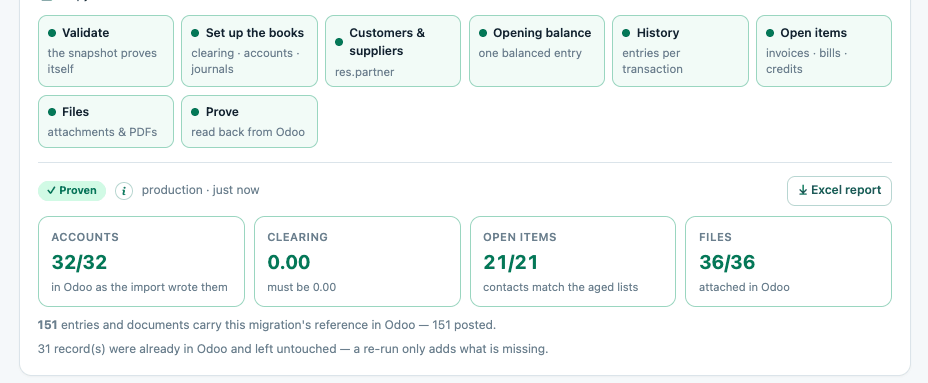
After a run, an Excel report lists every check, every account and every contact behind the figures.
Nothing is final until you say so
Rehearse as often as you like.
Point rehearsals at a staging database and production stays untouched until the day you mean to touch it.
It refuses to write when the source doesn't hold up.
If the trial balance doesn't balance, if history doesn't reproduce QuickBooks at a year end, or if an account is mapped somewhere that would distort the aged lists, the import stops before writing anything.
A rollback is one button and a confirmation.
It shows what it is about to remove — how many entries, how many posted, how many reconciled — before anything happens, and reports what it removed afterwards.
Re-running changes nothing twice.
A repeated import recognises what is already there, so an interrupted run is finished by running it again.
Scope, so there are no surprises
- QuickBooks Online. QuickBooks Desktop has no cloud API and is not covered.
- One QuickBooks company per Odoo company. A client with several companies gets several migrations.
- Connecting needs someone who can sign in to the client's QuickBooks and allow access; it can be withdrawn at any time.
- Sales PDFs are rendered by QuickBooks at the moment of export, on its current template: a faithful record of the figures, not of the document as sent. Uploaded files come across unchanged.
- Amounts are migrated in the company's home currency; foreign amounts are kept in each entry's note.